How this works, in two minutes
QR stickers are going on the machines in the yard. Point your phone camera at one and that machine’s page opens — no app to install, no hunting for which truck is which.
From there you can say something’s wrong with it, lock it out if it isn’t safe to run, put the hours or miles in, or look up what it takes. That’s most of it.
1Sign in once
The first time, it asks who you are. Put in your email address — the one the office has for you — and it emails you a 6-digit code. Type the code and you’re in. There is no password to remember or lose.
Your phone stays signed in afterwards, so this is a first-day thing, not an every-day thing. Signing in by text message is coming — the phone companies are still approving it — so use email for now.
2Scan the sticker
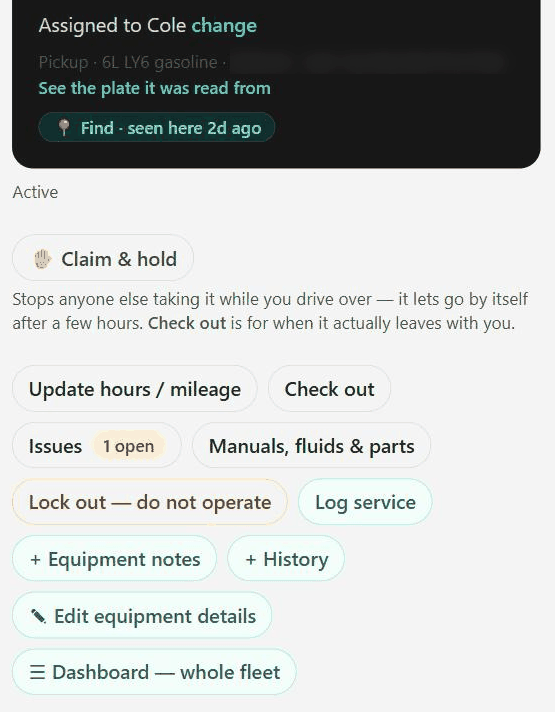
Open the camera, hold it at the sticker, tap the link that pops up. You get this. The three you’ll use most are ringed.
 123
123- 1 · Update hours / mileage — put the reading in whenever you notice it.
- 2 · Issues — anything wrong with the machine. On most phones this button says Log an issue; same thing.
- 3 · Manuals, fluids & parts — what it takes, and how to ask for some.
Claim & hold stops somebody else taking the machine while you drive over to it. It lets go by itself after a few hours.
3Something's wrong with it
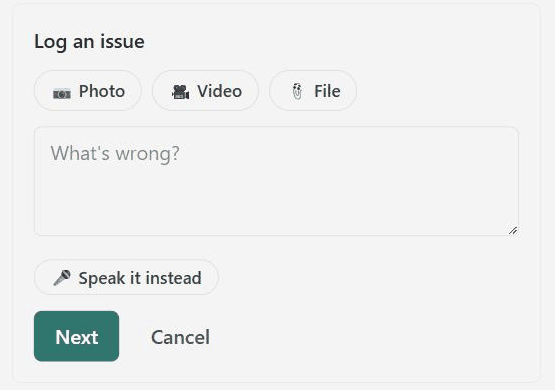
Tap Issues, then + New issue.
 123
123- 1 · Photo — take one. A picture of the leak tells the mechanic more than a paragraph, and he can order the part before he drives out.
- 2 · What’s wrong — plain words are fine. “Won’t start when it’s cold” beats “electrical fault”.
- 3 · Next — and it’s on the machine’s record. The mechanic sees it without anybody making a phone call.
Gloves on? Tap Speak it instead and say it out loud.
4Not safe? Lock it out
If a machine isn’t safe to run — bad brakes, a cracked weld, a guard missing, anything that makes you think twice — you can take it out of service yourself, right there, from your phone.
You don’t need permission and you don’t need to find anybody first. Every person on the crew can do this. Nobody has to agree with you.
 123
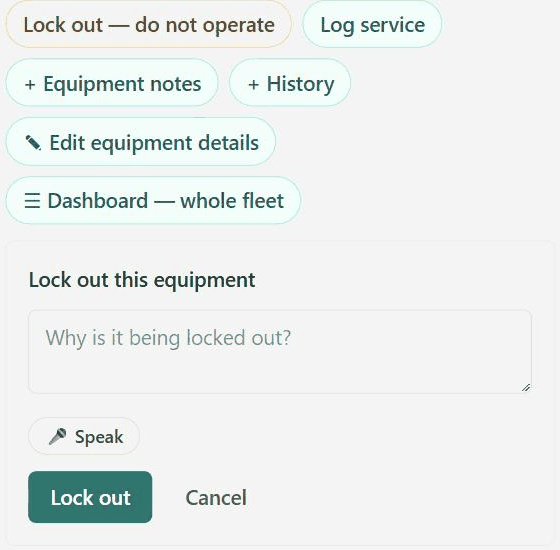
123- 1 · Lock out — do not operate on the machine’s page.
- 2 · Say why in a few words — “no brakes” is enough. Whoever walks up next reads exactly this.
- 3 · Lock out. The machine now shows 🔒 to everybody who scans it.
Only a mechanic or an admin can clear it again, so it stays locked until somebody who can fix it has actually looked. If it turns out to be nothing, that is a fine outcome — nobody has ever been in trouble here for stopping a machine.
5Put the hours or miles in
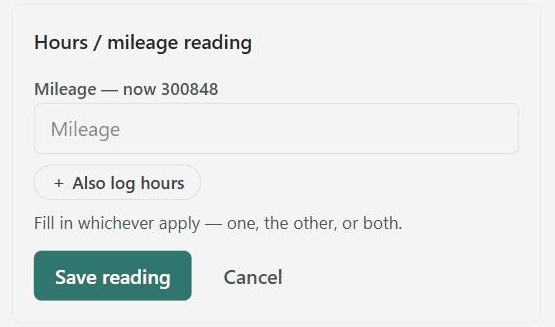
Tap Update hours / mileage. It already knows the last reading, so you only type the new number.
 12
12This is the one that saves everybody the most grief. Services come due on hours, so a machine nobody reads is a machine that gets its oil changed late or twice.
6Look a part up
Tap Manuals, fluids & parts. Every filter, fluid and belt that machine takes is listed — the oil weight, the capacity, the part numbers.
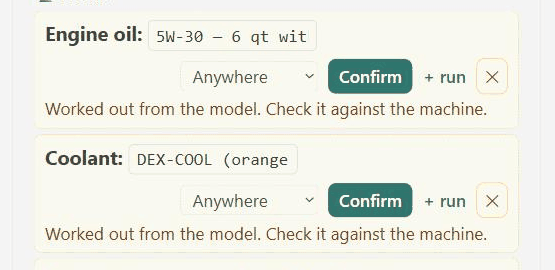
Worth a look before you drive to the counter, and worth a look before you pour anything in. Read it out over the phone if somebody else is doing the fetching.
A number sitting in a box is a suggestion nobody has checked yet. If you’ve got the real part in your hand, type its number in and tap Confirm — after that everybody gets the right one.
Mechanics and the office also get + run beside each part, which adds it to the list whoever is going to town prints off. If you need something and don’t have that button, log it as an issue instead — that reaches the same people.
7Watch for a service coming due
Near the top of a machine’s page, under its name, you may see a line like 🔧 Service due in 180 miles — amber when it’s close, red when it’s past.
You’re the one who knows where that machine will be on Thursday, so you’re the one who can get it into the shop before it’s overdue. See one coming? Say so to the mechanic while there’s still room to plan it.
It counts down in whatever the machine is measured by — miles, hours, or days — and it gets more accurate every time somebody puts a reading in, which is the other reason step 5 is worth doing.
Two things worth knowing
Nothing you do here is wrong. Logging an issue that turns out to be nothing is better than not logging the one that wasn’t. Nobody gets in trouble for a reading that was off by a hundred miles.
Found a sticker on a machine nobody set up? Scan it anyway — it’ll ask you what the machine is and that’s how it gets on the list.
Stuck on something? There’s a Report a bug button at the top of every screen. It goes straight to the people who can fix it, and it tells them which screen you were on.